Pages

Saturday, June 25, 2022

Create and configure Web Application Firewall (WAF) in Oracle Cloud (OCI) for Public site

Create and configure Web Application Firewall (WAF) in Oracle Cloud (OCI) for  Public sites

1.      1.Login to OCI with administrator credential 

1.      2.Click Web Application Firewall by navigating “Identity & Security” in the OCI Admin portal

1.      3.Click create new WAF policy in the Web application Firewall page

1.      4.In the “Create WAF policy “page, Click “Use legacy workflow here if you need to secure your non-OCI web applications”

1.      5.In the “Create Edge Policy” provide the below details and  then click Create Edge Policy

Name:  name of the WAF Edge Policy

WAF Policy Compartment:  Select your Compartment

Primary Domain: provide your public domain FQDN

Origin Name: Name of your Source

Origin URI: Source of your application public FQDN. Ex: SharePoint public URL, Load balancer URL, API Gateway URL, API Application, IIS site URL etc.


6. Enable HTTPS in WAF by Importing Public Certificate

Convert your public certificate, Private Key and intermediate key in PEM format before enabling HTTPS in WAF.

  6a.Click Edit in the General Settings in WAF to Enable HTTPS and to import certificate

6b. In the Edit Settings page, Select “Enable HTTPS Support” 
6c.In the Edit setting page, choose “Upload or paste certificate and private key” under certificate Source
6d.Choose Text as “upload certificate Source” and “Upload private key Source”. In the certificate text editor section, paste your certificate content and intermediate certificate content one by one and paste your private key content in the private key text editor section from your PEM format files.

6e. Save your changes and publish the WAF.

7. Create the CNAME record as per in the WAF in your public domain control panel.

Create HTTPS(SSL) web application and Site collection in SharePoint 2019/2016/2013/2010

 Create HTTPS(SSL) web application and Site collection in SharePoint 2019/2016/2013/2010


1. Open Central admin site -> Application Management-> Web Applications-> Create new Web application.

2. Change from 80 to 443 in the PORT and provide FQDN in the Host Header      

3. In the Security Configuration section, Select “Yes” in the “Use Security Socket Layer”

4. Complete all the other required fields and keep rest of sections as default then click OK Create the web application.

5. Create the Site collection once the web application has been created

6. Associate(Bind) the public certificate SSL or Self signed certificate in the created web site in IIS before the browse the created new site.


Associating (Binding) certificate SSL in one web site, changing certificate on other site (SharePoint 2010/2013/2016/2019)

 Associating (Binding) certificate SSL in one web site, changing certificate on other site (SharePoint 2010/2013/2016/2019)

I have imported two explicit public certificates in the IIS on SharePoint Servers and configured AAM for HTTPS URL in the SharePoint Central Admin site.

When I associate the certificate in one site in IIS Binding, the existing associated certificate of other site getting changed automatically.

The issue has been resolved after I enabled “Require Server Name Indication” in one of the web application site in IIS.


Friday, June 24, 2022

Redirect HTTP to HTTPS using AAM in SharePoint 2019/2016/2013

Redirect HTTP to HTTPS using AAM in SharePoint 2019/2016/2013

1.      1.Set HTTPS URL as default under AAM in SharePoint and add Appropriate SSL in the Binding in IIS.      

1.      2.Click “Add internal URLs” and add your HTTP URL to the default Zone.                                                        

1.      3.Now the AAM should be looks like below                                                                                                  

1.      4. Click and add Binding and provide your hostname in IIS and do the IISRESET                                   


Wednesday, July 18, 2018

This report contains no data. Please ensure data for this report is being captured by the current audit setting.


When I generate audit reports for one of the SharePoint online site, got the error message of “This reports contains no date. Please ensure data for this report is being captured by the current audit settings. It may also take some time after audit settings are changed to events to surface here


 I followed the below steps to enable to Audit log reports for office 365 SharePoint online site.

1               1.Configure Audit reports in Site collection Level
a.       Go to office 365 SP site -> Site setting-> Navigate to Site collection Audit settings under site collection administration
b.      Enable Audit setting and provide the audit report save location
c.       Enable the required to activities to trace and click OK to Save.

2             2.Configure Audit Reports in Site level
a.       Got to office 365 SP Site -> Site setting -> Navigate to audit reports under site collection administration
b.      Select required activity reports you need it and the location

3          3.Configure/Enable Audit reports in Global Level
a.       Navigate to https://protection.office.com/#/unifiedauditlog and Enable Audit log for the tenant level.

Friday, December 22, 2017

SharePoint 2013 workflow got cancelled with HTTP 401

SharePoint 2013 workflow got cancelled and found the below error

RequestorId: 2835896c-3aff-232c-10b0-da0b18ec10de. Details: System.ApplicationException: HTTP 401 {"error_description":"The server was unable to process the request due to an internal error. For more information about the error, either turn on IncludeExceptionDetailInFaults (either from ServiceBehaviorAttribute or from the <serviceDebug> configuration behavior) on the server in order to send the exception information back to the client, or turn on tracing as per the Microsoft .NET Framework SDK documentation and inspect the server trace logs."} {"x-ms-diagnostics":["3001000;reason=\"There has been an error authenticating the request.\";category=\"invalid_client\""],"SPRequestGuid":["2835896c-3aff-232c-10b0-da0b18ec10de"],"request-id":["2835896c-3aff-232c-10b0-da0b18ec10de"],"X-FRAME-OPTIONS":["SAMEORIGIN"],"SPRequestDuration":["32"],"SPIisLatency":["5"],"Cache-Control":["private"],"WWW-Authenticate":["Bearer realm=\"9a5e4a6b-4ab4-4cd5-a2c2-b1b60f387c21\",client_id=\"00000003-0000-0ff1-ce00-000000000000\",trusted_issuers=\"00000005-0000-0000-c000-000000000000@*,11111111-1111-


      Resolution:     

  •      Don’t use system account for workflow creation and publishing.
  •      Ensure User profile synchronization service is started (also ensure both FIM Services are started).
  •      Ensure user profile service application has been associated to the web application

If the above solution are not working then follow the below links which may resolve the issue.


For my case the user profile service application not associated to the web application. 

Not running in high contrast, so we will paint the background with our trademarked image(event id 10010 & Event id 103)

I got the below errors in the Event logs and SharePoint PS configuration logs while I am installing SSRS Add-in on Sharepoint 2013.

Event ID: 10010

Application ‘C:\Program Files\Microsoft Office Servers\15.0\Search\runtime\1.0\noderunner.exe’ cannot be restarted. Application SID does not match Conductor SID.
Application ‘C:\Program Files\Microsoft Office Servers\15.0\Bin\mssdmn.exe’ cannot be restarted. Application SID does not match Conductor SID.

Event Id 104

Failed to Install the application content files.
An exception of type system.NullReferenceException was thrown. Additional exception information:Object reference not set to an instance of an oject.
System.NullReferenceException: Object reference not set to an instance of an object.
 At Microsoft.Sharepoint.Administration.SPAspConfigurationFile.ApplyActionToXmlDocument(XmlDocument xdAction,XmlDocument Xd

SharePoint PS Configuration error:

Not running in high contrast, so we will paint the background with our trademarked image

Resolution:

Finally found that the cause for the above issue is that SharePoint web application web configs contains comments <!.. ..> Entry.


The issue was resolved by deleting comments entries in the web configuration files for all the SharePoint web application for my case.


Tuesday, August 22, 2017

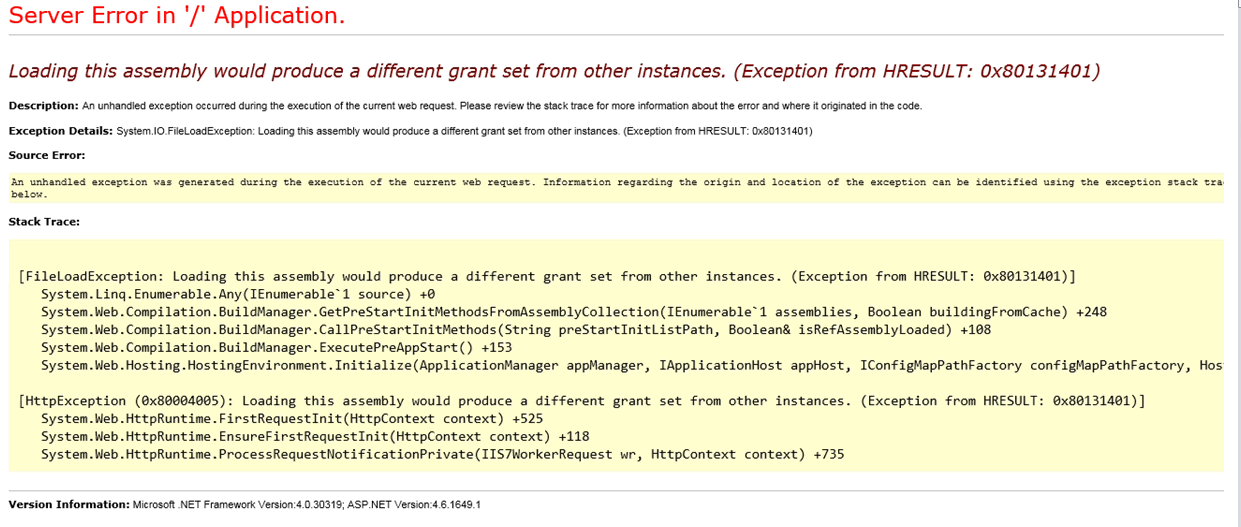
Loading this assembly would produce a different grant set from other instances. (Exception from HRESULT: 0x80131401)

Loading this assembly would produce a different grant set from other instances. (Exception from HRESULT: 0x80131401)


I did windows update and rebooted the SharePoint 2013 Server last week.  The SharePoint Sites are not working including central admin after reboot and got the below Warning Event log and error message when browsed the sites.

Event Log(Event id 1309)


Error Message:


Temporary Workaround Solution:

I changed the below entry in one of the web application web. Config file and the site was working fine.
From:
<trust level="Full" originUrl="" legacyCasModel="true" />
To:
<trust level="Full" originUrl="" legacyCasModel="false" />

Cause for the issue:
The SCOM 2016 Agent installed with APM feature on Sharepoint 2013 Server which caused the issue.
The client side .Net Application Performance Monitoring (APM) is not supported in SharePoint. That’s the reason we got the above error message.

Permanent Solution:
We reinstalled SCOM 2016 agent without APM feature through command. The issue was resolved and the sites were working fine after installation of SCOM 2016 Agent without APM Feature.
Used below Command Prompt for SCOM 2016 Agent without APM Feature installation.
MSIEXEC /i MOMAgent.msi NOAPM=1

Monday, July 3, 2017

The Subscription Settings Service and Corresponding Application and Proxy needs to be running in order to make changes to these settings


I got “The Subscription Settings Service and Corresponding Application and Proxy needs to be running in order to make changes to these settings” after I did the Apps Configuration on one of the SharePoint 2013 server.


Finally found that I skipped one of the Subscription Settings configurations in the steps. I ran the below commands to configure Subscription Settings Service

$account = Get-SPManagedAccount "domain Name \ service Account"
$appPoolSubSvc = New-SPServiceApplicationPool -Name “Name of Settings Service AppPool” -Account $account
$appSubSvc = New-SPSubscriptionSettingsServiceApplication -ApplicationPool $appPoolSubSvc -Name “Name of Settings Service Application” -DatabaseName “Name of Subscription Settings Service DB”
$proxySubSvc = New-SPSubscriptionSettingsServiceApplicationProxy -ServiceApplication $appSubSvc

Thursday, June 22, 2017

Another object in this farm already contains the same ID


Cannot attach databases with same ID to different web applications

Databases with same internal ID cannot be attached web applications even if the databases have different name. If we try attach the database with same id, we would be get “another object in this farm already contains the same ID” as shown in below image.


We ran below commands to find and delete the database 

Get-SPDatabase | where{$_.Name -eq "webappliction Name"}
Remove-SPcontentdatabase –identity “ID of the DB”

The database attached successfully after we removed the existing database.